
Beyond the Monolith: Mastering Nested Repositories with Git Submodules
February 2025
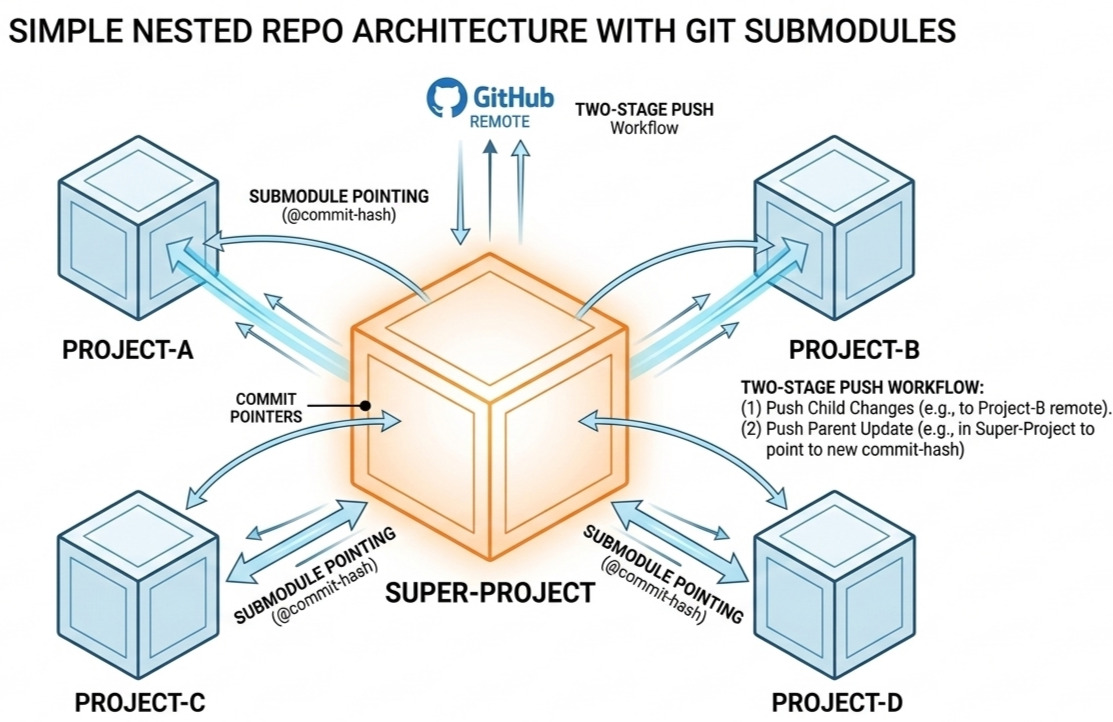
The "Nested Repo" Dilemma
As developers, our local workspaces often become a complex web of interconnected projects. You might have a main "Research" or "Portfolio" directory containing several independent tools, libraries, or experiments.
The challenge arises when you want to push this entire structure to GitHub. A standard git init at the root level ignores the history of the folders inside it, while simply nesting folders creates a "git-within-git" conflict that often leads to untracked files or broken links.
To maintain a clean, professional architecture where each project keeps its own independent history but remains accessible through a single "Super-Project" container, we use Git Submodules. This guide explains how to master this "pointer-based" workflow to keep your GitHub profile organized and your code modular.
The "Super-Project" Architecture
In this model, your parent directory doesn't store the actual code of the child projects. Instead, it stores commit pointers (metadata) that link to specific versions of those projects. This satisfies two critical requirements:
- Independent Version Control: Each child directory remains its own Git repository with its own history and branches.
- Structural Integrity: Your "Parent" repository acts as a functional map. Visitors see clickable folders that jump directly to the respective child repositories.
Phase 1: Prepare the Child Repositories
Before nesting, each child directory must exist as a standalone repository on GitHub.
- Navigate into each child folder:
cd Project-A. - Run
git init, commit your files, and push them to a unique GitHub URL (e.g.,github.com/user/Project-A).
Phase 2: Create the Parent "Super-Project"
Now, link them together within your main workspace directory.
Initialize the Parent: From your main local root:
git init
Add child repos as submodules: Run this for every child project to link the remote URL to your local path:
git submodule add https://github.com/your-username/Project-A.git Project-A
git submodule add https://github.com/your-username/Project-B.git Project-B
Commit the mapping: You will notice a new .gitmodules file. This is the configuration file that tells GitHub how to render your directory structure.
git add .
git commit -m "feat: initialize structure with Project-A and Project-B as submodules"
Push the parent to GitHub: Create a "Main-Workspace" repo on GitHub and push the parent:
git remote add origin https://github.com/your-username/Main-Workspace.git
git push -u origin main
The Daily Management Workflow
When you modify code inside a child project, you must update the pointer in the parent repo. This requires a two-stage push. Think of it as updating the book (child) and then updating the library's index (parent).
Step 1: Push the Child Changes
First, ensure the child's remote is up to date. If you skip this, the parent will point to a commit that doesn't exist on the server, resulting in a "broken link" for other users.
cd path/to/child-project
git add .
git commit -m "fix: update biological simulation logic"
git push origin main
Step 2: Update the Parent Pointer
Now, tell the parent repository to "record" the new commit hash of the child.
cd ..
# Git sees the child folder as having a modified "commit pointer"
git add path/to/child-project
git commit -m "chore: update child-project reference to latest commit"
git push origin main
Verification and Safety
How to Verify on GitHub
- Open your Parent Repository.
- Look at the folder for your child project; you'll see a specific commit hash (e.g.,
@a1b2c3d) next to the name. - Click the folder. It should seamlessly redirect you to the child repository at that exact moment in history.
Tip: The "Safe" Push
To prevent "broken links," use this command from the Parent Root:
git push --recurse-submodules=check
This acts as a safety net: it will abort the push if you have committed changes in a submodule that haven't been pushed to their own remotes yet. It's the best way to ensure your collaborators (and your future self) never encounter a "Git ghost."
Hope you find this short guide useful for organizing your projects better!